
Skip to content
XCodes IPTV

Apps

XCodes IPTV App

Watch XCodes IPTV in a player app on your Firestick, Android TV, Apple TV, Smart TV, phone or computer. Find the right app for your device, install it from a safe source and sign in with your login.

Recommended apps

Best Apps for XCodes IPTV by Device

Your XCodes IPTV login works in any player that supports Xtream Codes or M3U. These are good starting points for each device.

Amazon Fire TV & Firestick

  • TiviMate

    Cable-style TV guide; Premium is a paid upgrade.

    tivimate.com (opens in a new tab)
  • IPTV Smarters Pro

    Simple menus for live TV, films and series; download from its official website.

  • Amazon Appstore players

    Search “IPTV player” on your Fire TV and check for Xtream Codes support.

Full setup guide

Android TV, Google TV & Android phones

  • TiviMate

    Built for TV screens; not intended for phones.

    Google Play (opens in a new tab)
  • IPTV Smarters Pro

    Works on TV boxes, phones and tablets.

  • Other Google Play players

    Look for Xtream Codes support and a recent update date.

Full setup guide

These apps are made by independent developers. They are not affiliated with XCodes IPTV 4K and don't include any channels — you add your own login.

How to Install the XCodes IPTV App

Fire TV Stick

  1. Search the Amazon Appstore for your chosen player and select Get.
  2. If it isn't listed, install Downloader and enter the download address from the app developer's official website.
  3. Allow Install unknown apps for Downloader only — see the Firestick guide.

Android phones, tablets & TV boxes

  1. Open Google Play and search for your chosen player.
  2. Select Install, then Open.
  3. On Google TV you can also install from the Play Store website on your phone — see the Android guide.

Apple TV, Samsung & LG

  1. Open your device's app store (App Store, Samsung Apps or LG Content Store).
  2. Install a player that lists Xtream Codes or M3U support.
  3. Some TV apps need activation on the developer's website — see the Smart TV guide.

Signing in

  1. 1

    Choose Xtream Codes login

    Look for “Xtream Codes”, “Xtream API” or “Login with username/password”.

  2. 2

    Enter your details

    Server URL (with http:// and the port), username and password — exactly as sent to you.

  3. 3

    Wait for the first load

    Live TV, films, series and the TV guide download. Large lists take a few minutes.

Login not working? The login guide lists every common error and its fix.

What You'll See in the App

Menus differ between players, but most show the same main sections once you sign in.
Live TV
Channels grouped by category, with what's on now and next.
Movies
The on-demand film library, with posters, search and resume.
Series
Shows organised by season and episode.
TV Guide
A grid view of the schedule (EPG), where provided.
Favourites
Your own shortlist of channels for faster browsing.
Settings & reload
Time zone, player options and a button to refresh your playlist.
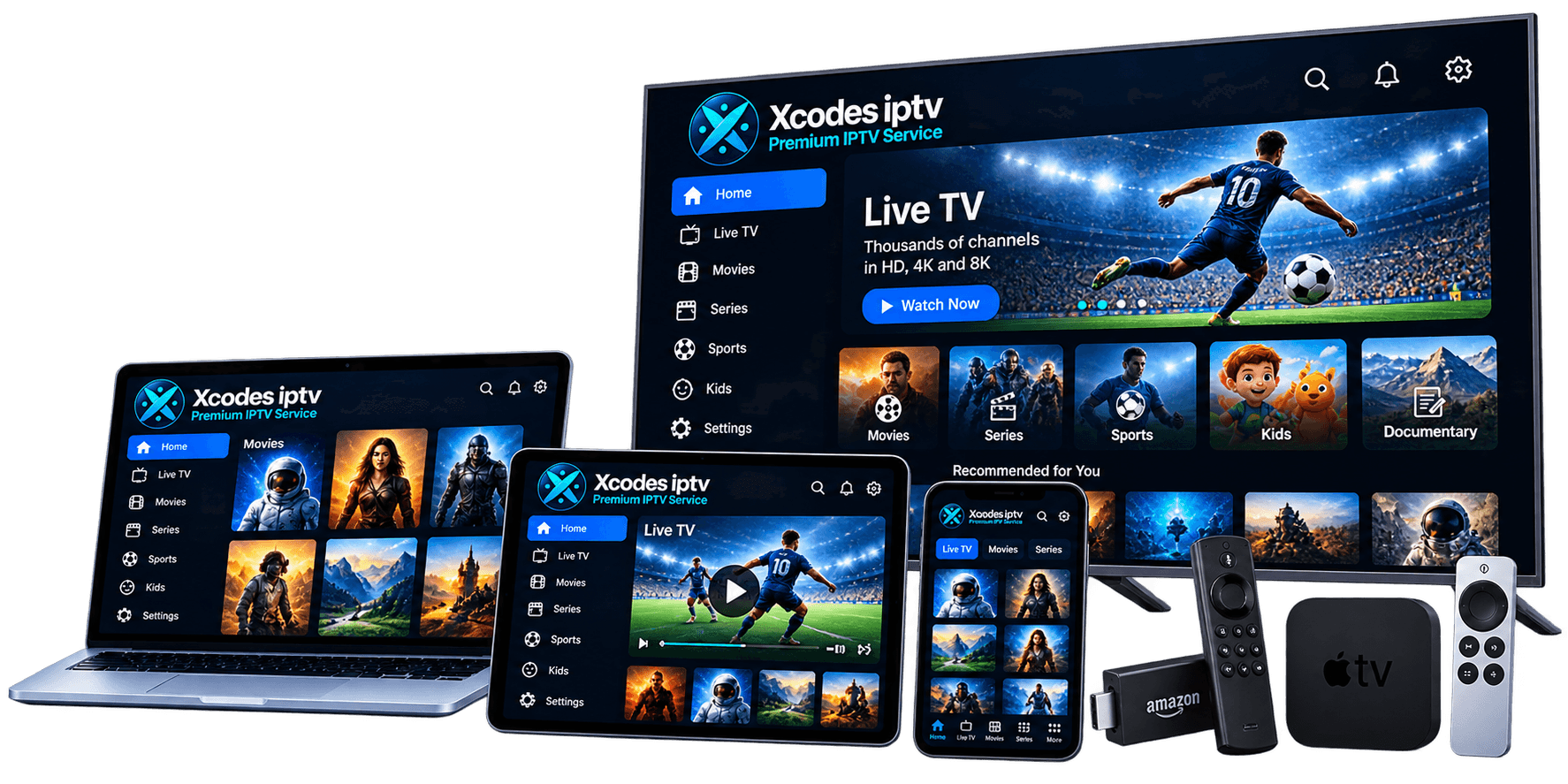
XCodes IPTV app home screen with Live TV, Movies, Series and TV guide menus on a TV, laptop, tablet and phone

Install Apps Safely

  • Download only from an official app store or the developer's own website.
  • Never install “modded”, “cracked” or “premium unlocked” versions — they are a common source of malware.
  • Check the permissions an app asks for. A video player doesn't need your contacts or SMS.
  • Turn off Install unknown apps again after sideloading on Fire TV or Android.

XCodes IPTV App Questions

Is there an official XCodes IPTV app?

XCodes IPTV works through IPTV player apps that support Xtream Codes or M3U logins, so you can use the app that suits your device best. The recommended apps on this page are made by independent developers.

Which app is best for Firestick?

TiviMate and IPTV Smarters Pro are popular choices on Fire TV. TiviMate has a cable-style TV guide; IPTV Smarters Pro has simple menus. Both accept an Xtream Codes login.

Do I have to pay for the app?

Some players are free, others have paid upgrades or an activation fee charged by the app developer. That payment is separate from your XCodes IPTV plan.

Can I use my login in more than one app?

Yes. You can add the same login to different apps and devices. Only the number of connections in your plan can play at the same time.

Setup Guides

Stuck installing the app?

Tell us your device and the app you chose — we'll walk you through installation and sign-in.